How to Connect Shizuku App with Termux to Run ADB Commands
In this tutorial, you will learn how to connect the Shizuku App with Termux. This setup lets you run full ADB commands directly on your Android phone—no PC and no root access required!
Step 1: Install the Apps
First, download and install the latest versions of the Termux App (from F-Droid) and the official Shizuku App on your phone.
Step 2: Turn on Shizuku
Open the Shizuku app and follow the setup to turn on wireless debugging. Once it is running, tap the option that says "Use Shizuku in terminal apps".
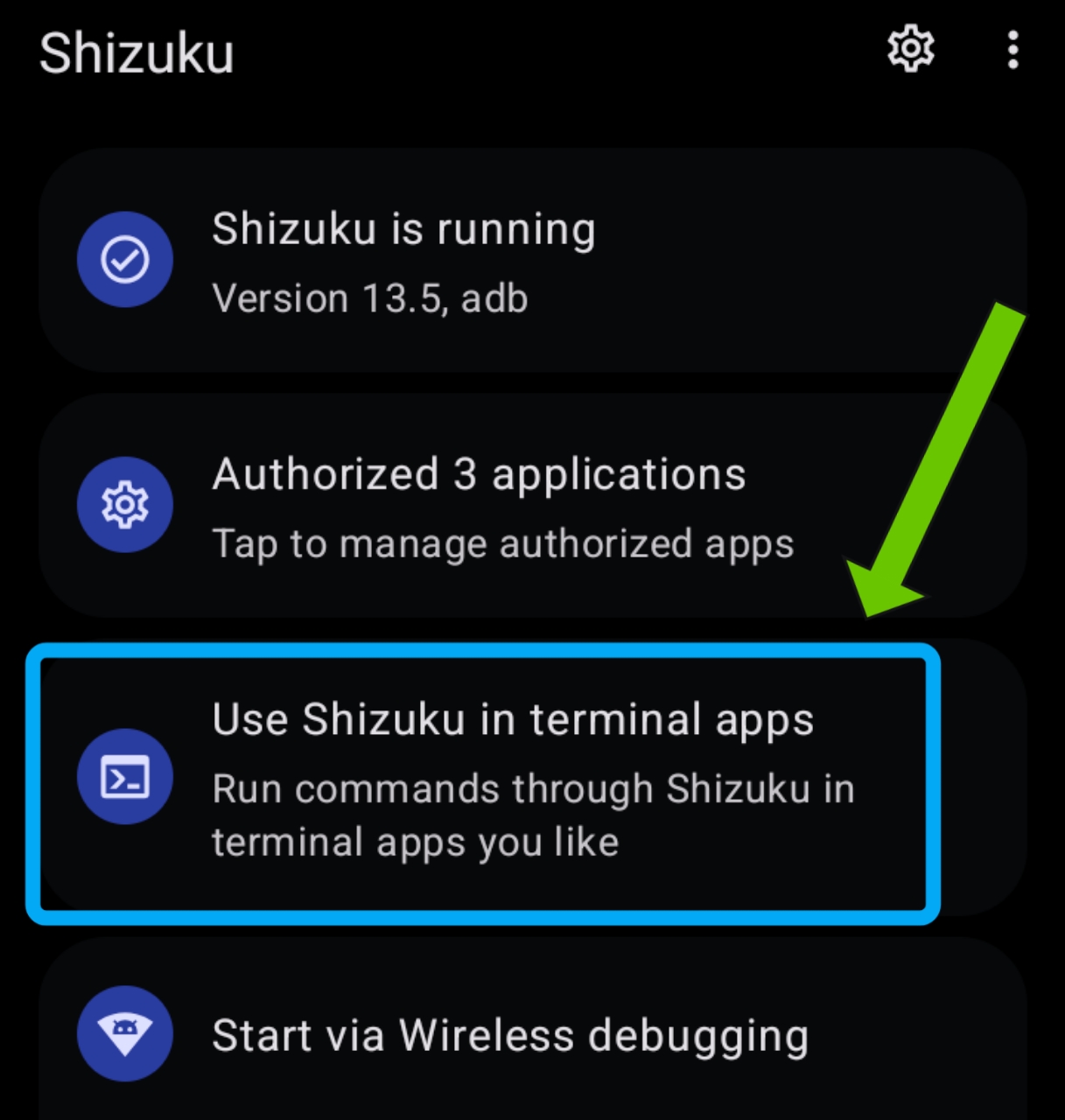
Step 3: Export the Script Files
Tap the "Export Files" button. Choose a folder on your phone to save the files. This will save two files: rish and rish_shizuku.dex. We recommend creating a folder named sh inside your phone's Documents folder and saving them there.
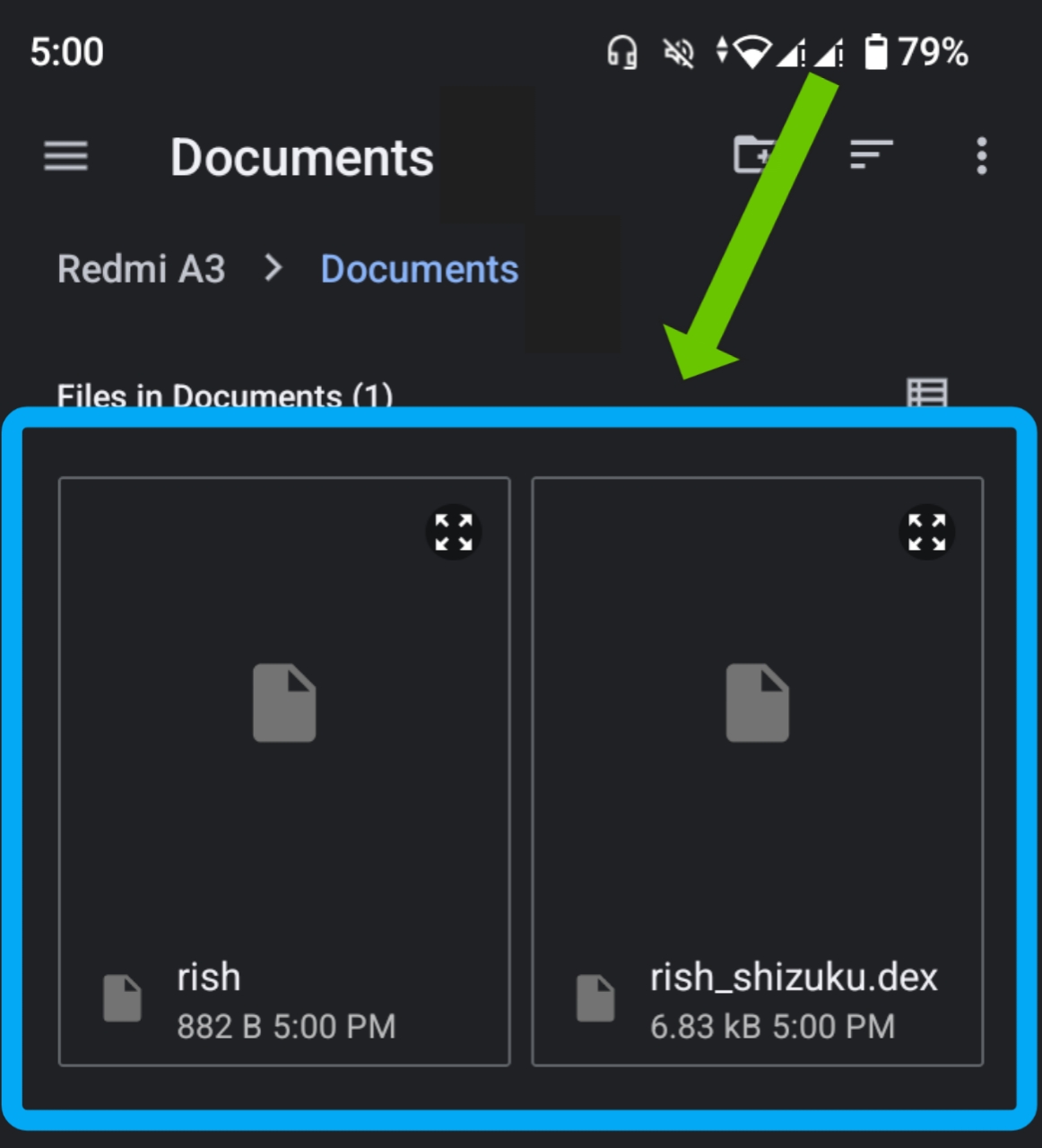
rish and rish_shizuku.dex files are in your folder.Step 4: Open the Script File
Open any text editor app on your phone and open the exported rish file.
Step 5: Edit the Package Name
Find the text that says PKG inside the file, and change it completely to com.termux.
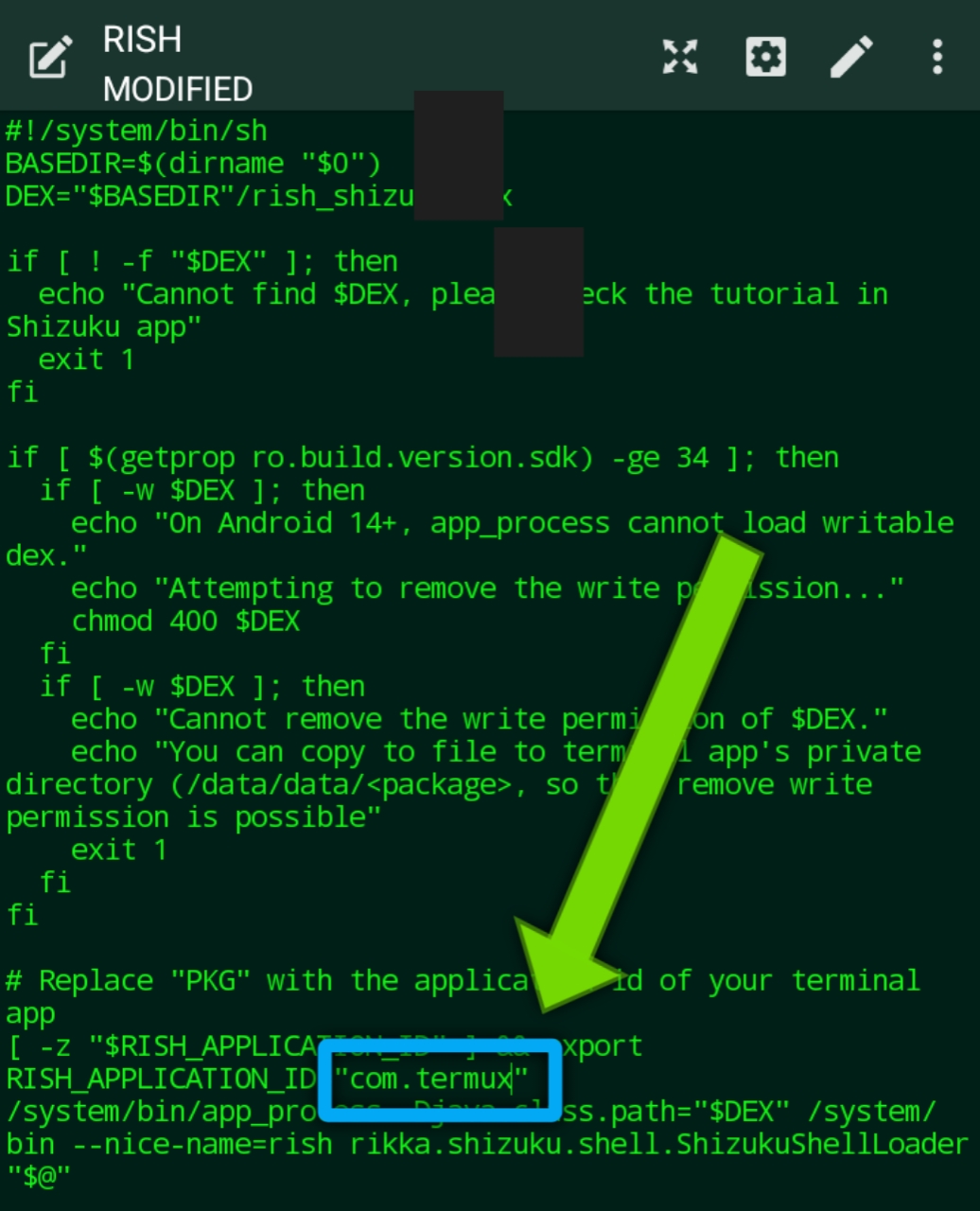
PKG text to com.termux.Step 6: Move Files into Termux
Open the Termux app, paste the command below, and press Enter to copy the folder into Termux:
cp -r "/sdcard/documents/sh" "/data/data/com.termux/files/home/"Step 7: Start the ADB Connection
Go into your new folder and run the script by typing this command and hitting Enter:
cd ~/sh && sh rish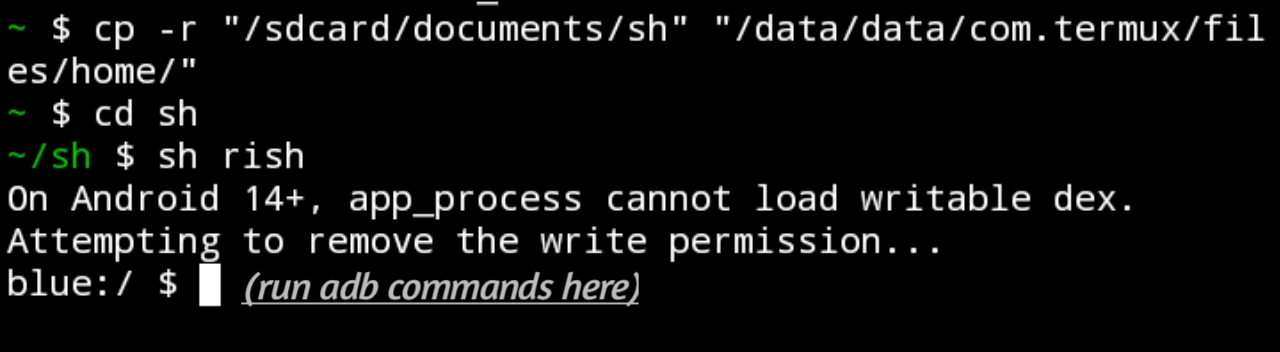
We hope this step-by-step guide helped you set everything up easily!
Check out our Tutorials for more helpful guides and tutorials.
If this tutorial helped you, subscribe to get notified about new videos and tutorials:
YouTube Channel